
To add a website to the tool, click on “Settings” “+Add site.”
The following screen will open automatically and you will need to enter the following information:
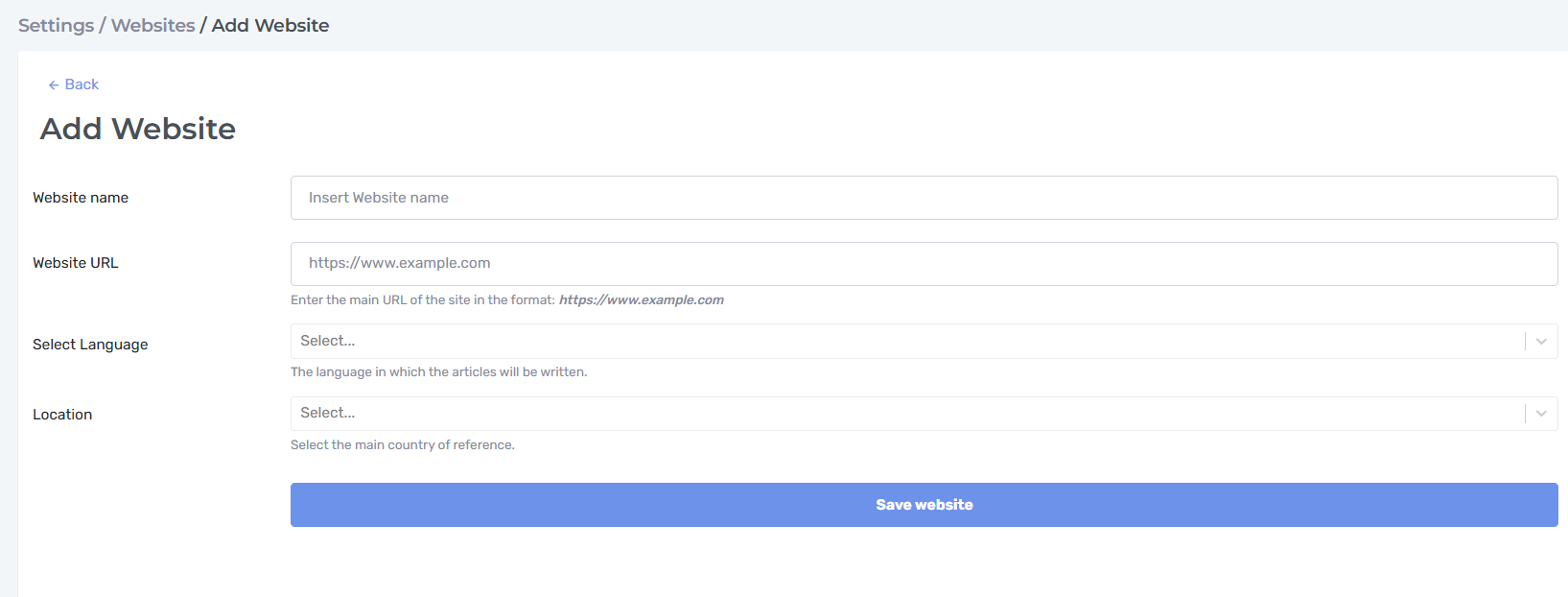
In “Website name” enter the full name of the website within AuthorEvo.
In “Website URL” specify the URL of the site (each subdomain is a different website).
In “Select a language” select the main language you want to configure for the content.
In “Location” select the region or country of reference for the site.
Language and location are two fundamental parameters as they define in which country and in which language the SERP analysis is carried out.
After filling in all the fields, click on “Save website.”
If you want to add a website and have reached the limit of your plan, you can archive a website that is no longer in use. An archived site can no longer be used.
Once the website has been added, you can configure all settings from “Settings” > “Sites” and by clicking on the icon

the following screen will open:
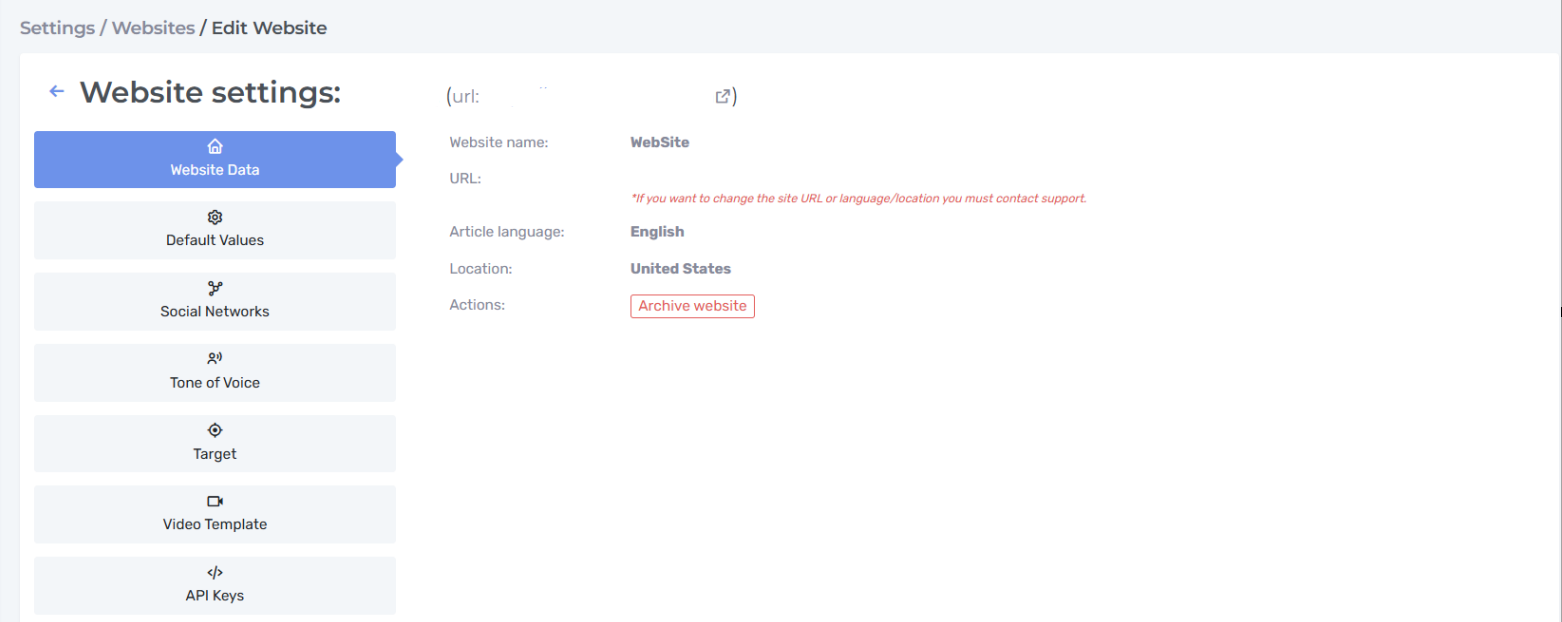
The “Website Data” section provides a comprehensive and organized view of all the main information relating to the configured website. This area is the control center for quickly checking the fundamental settings of the project:
Full name of the website
Main reference domain
Main language configured for content
Region or country of reference for the site
This data cannot be modified. For specific requirements, please contact our customer service.
DEFAULT VALUES
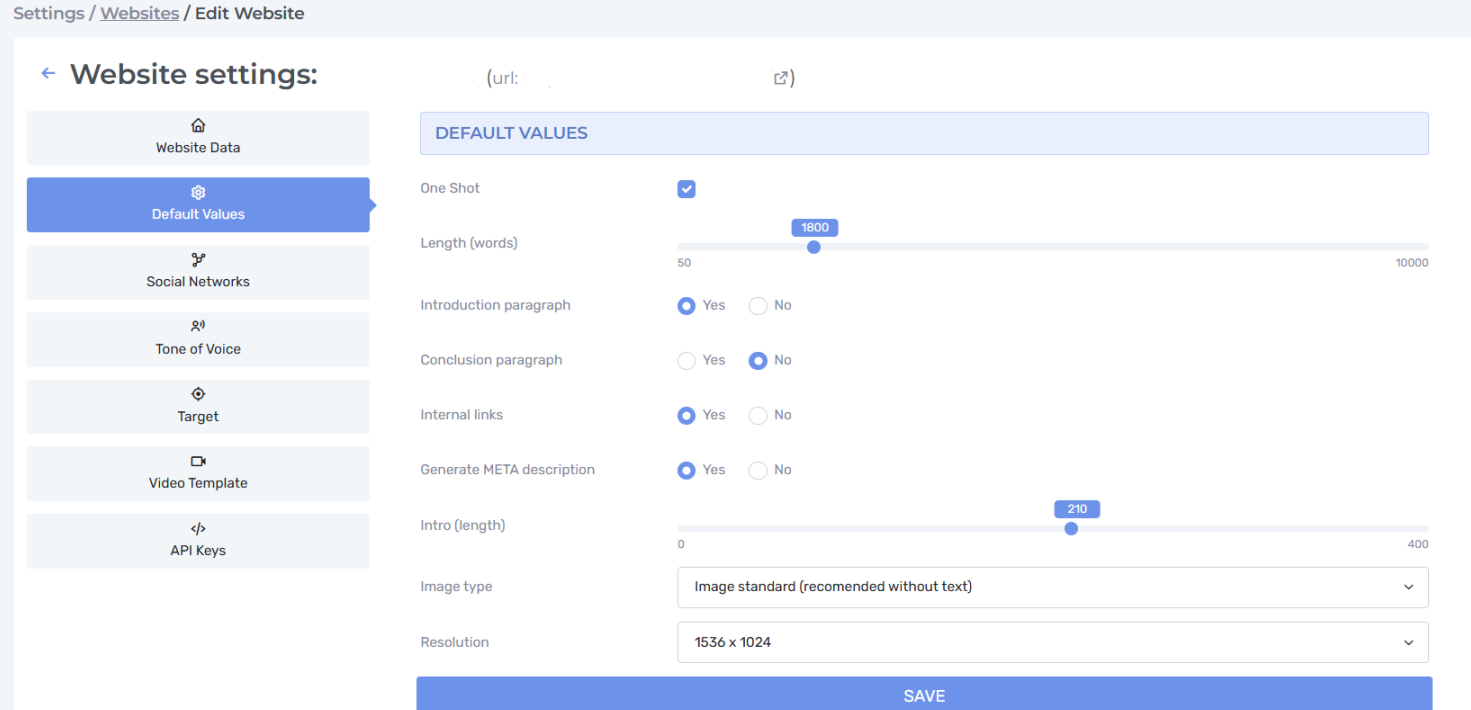
This is a very important section, and we recommend filling it in as soon as possible once you have created your website. This will speed up future content creation requests, as the default settings defined here will be used. In any case, you can always change these values when requesting content.
SOCIAL NETWORK
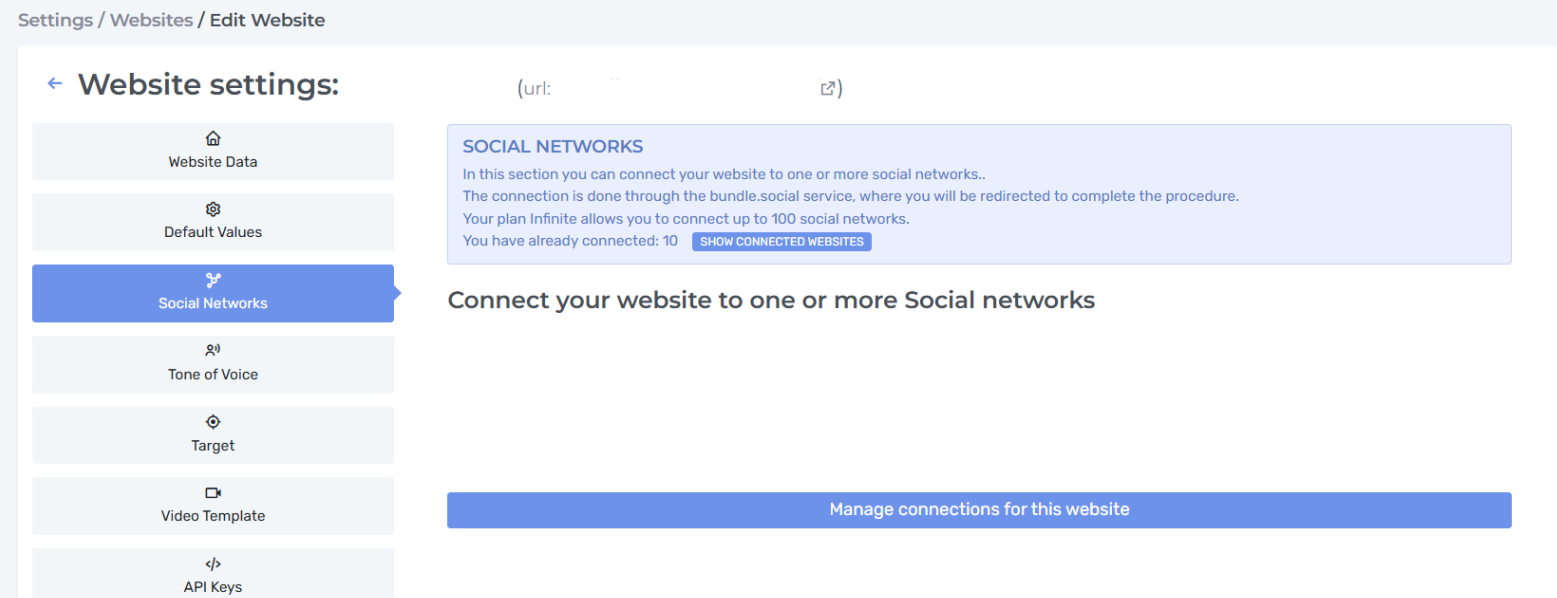
From this page, you can manage the website's social networks. You can define a social profile for each social network available for each website, according to the limits of your plan.
By clicking on “Manage connections for this site,” you will be redirected to a page where you can connect the various social profiles. We suggest that you are already logged into the website's social profile when connecting.
During the connection, you will be asked to authorize “Bundle.social” to access your profile for publication. You must confirm this. This is the name of the service that allows publication on social networks.
It is important to check your connection to the various social networks every month, as some social networks disable connections by default.
TONE OF VOICE
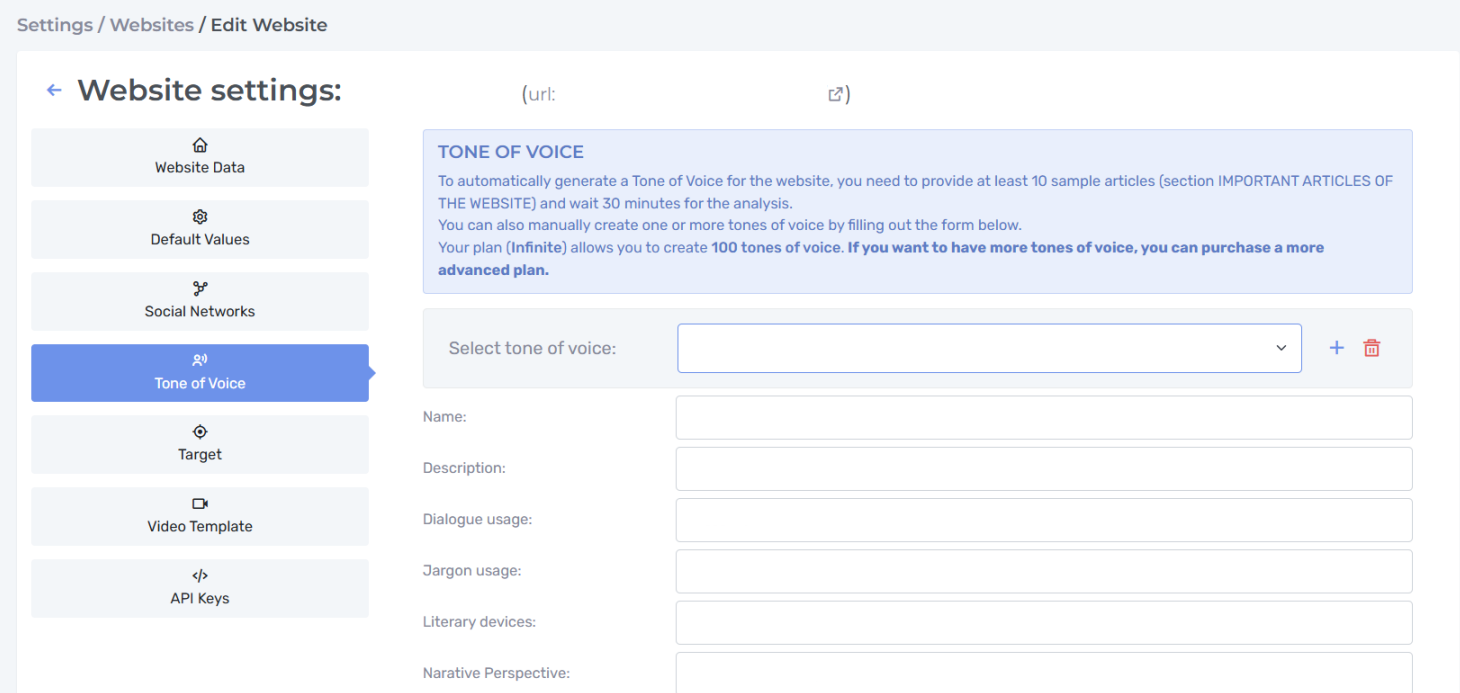

Here you can create multiple writing styles, indicating in text form, in the language of the site, the characteristics of each style:
Additional comments
Description
Use of dialogue
Use of slang
Rhetorical figures
Narrative perspective
General style
Paragraph structure
Sentence structure
Target audience
Tone
Vocabulary level
An initial Tone of Voice will be created automatically within 24 hours of adding the new site. A spider will analyze all the site's content and create a Tone of Voice based on the writing style of the articles already present.
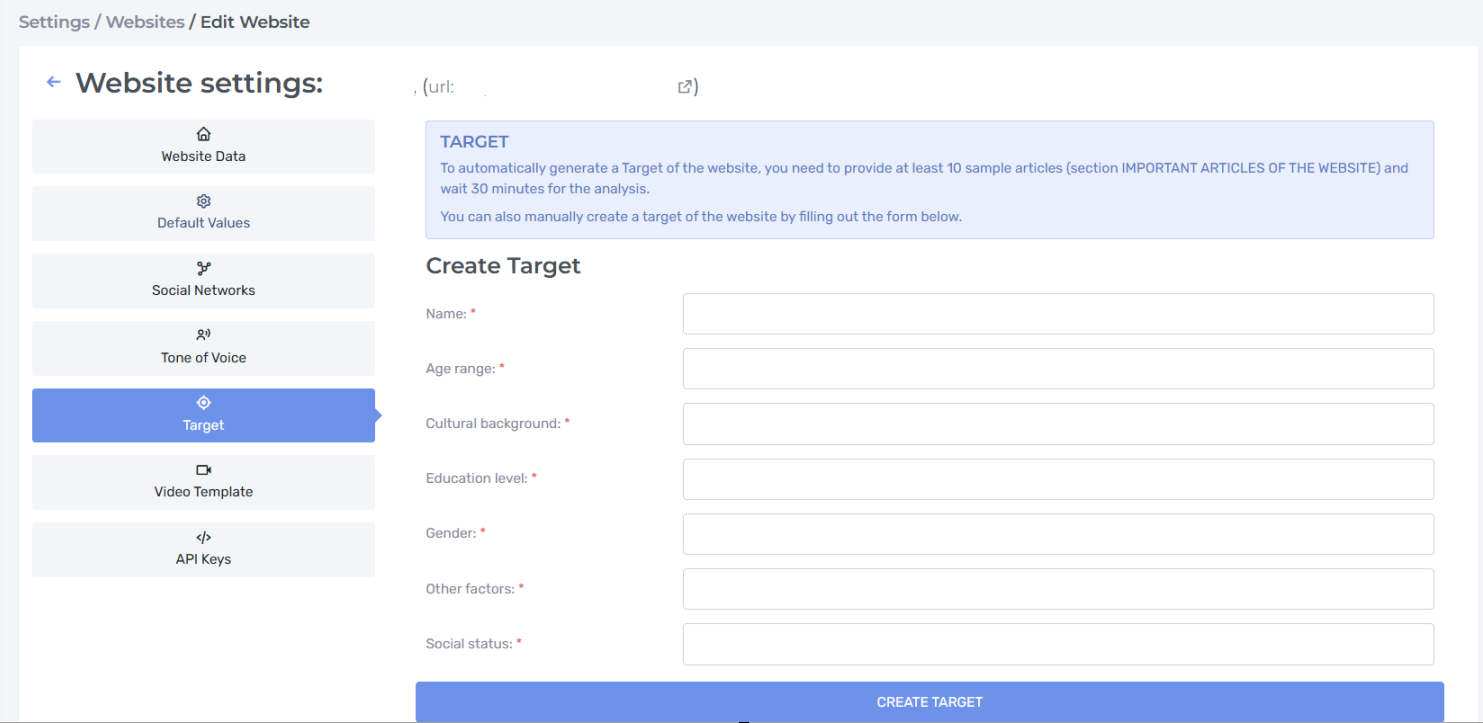
TARGET
Here you can create multiple entries where you can specify the audience for which to write an article. You can define different ones for each site and, again, within the first 24 hours of adding the site, a target will be added based on the semantic analysis of the website.
VIDEO TEMPLATE
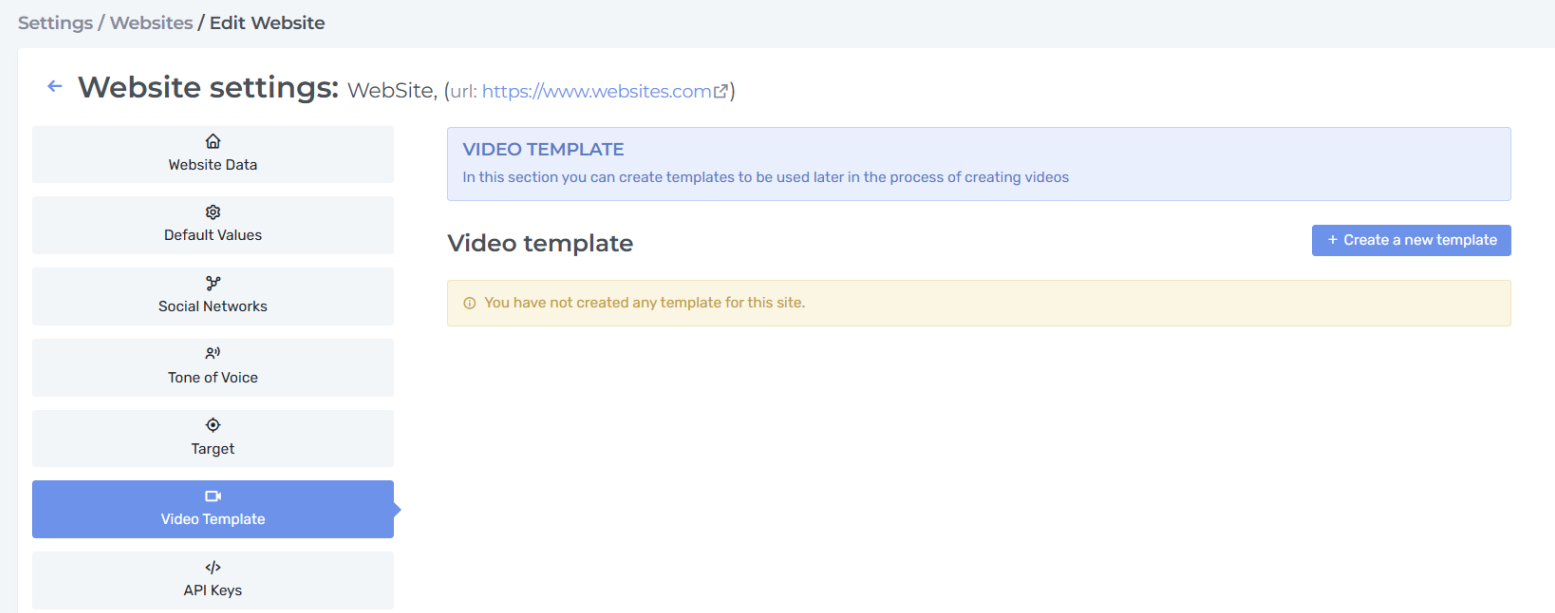
As with default values, video templates allow you to define common characteristics for videos. You can specify the tone, the target audience for the video, the name of the YouTube channel where the video will be uploaded, the predominant colors of the cover, and instructions for the cover.
You can also upload an .mp4 video file of up to 30 MB to be inserted as an intro before the video and another to be inserted at the end of the video.
CTA
With CTAs, you can define the calls to action to be included in the video script. These are phrases in which we invite users to take action: subscribe to the channel, leave a comment, or click on a link. You can define the type of CTA and when to place it.
You can define when to place it by specifying a number of seconds after the start of the video or after a certain percentage of time has elapsed.
Here is an example configuration:
Capture attention - seconds - 0-10
Subscribe - seconds - 10-10
Bell - seconds - 10-10
Content - Percentage - 20 - 10
Like - Percentage - 50 - 10
Comment - Percentage - 50 - 10
Conclusion - Seconds - 999999 - 8
Here is a detailed description of each CTA:
Capture attention
This is the introductory sentence, where we ask the AI to create a hook to attract the user's attention.
Subscribe
We invite the user to subscribe to the channel.
Bell
Invites the user to click on the YouTube bell so they don't miss any more videos.
Content
Space dedicated to the video content
Like
Invites the user to like the video
Comment
Invites the user to leave a comment below the video about what they think and their experience
Donate
Asks the user to use YouTube's Donate feature if they liked the video
Conclusion
Final conclusion of the video
API KEYS
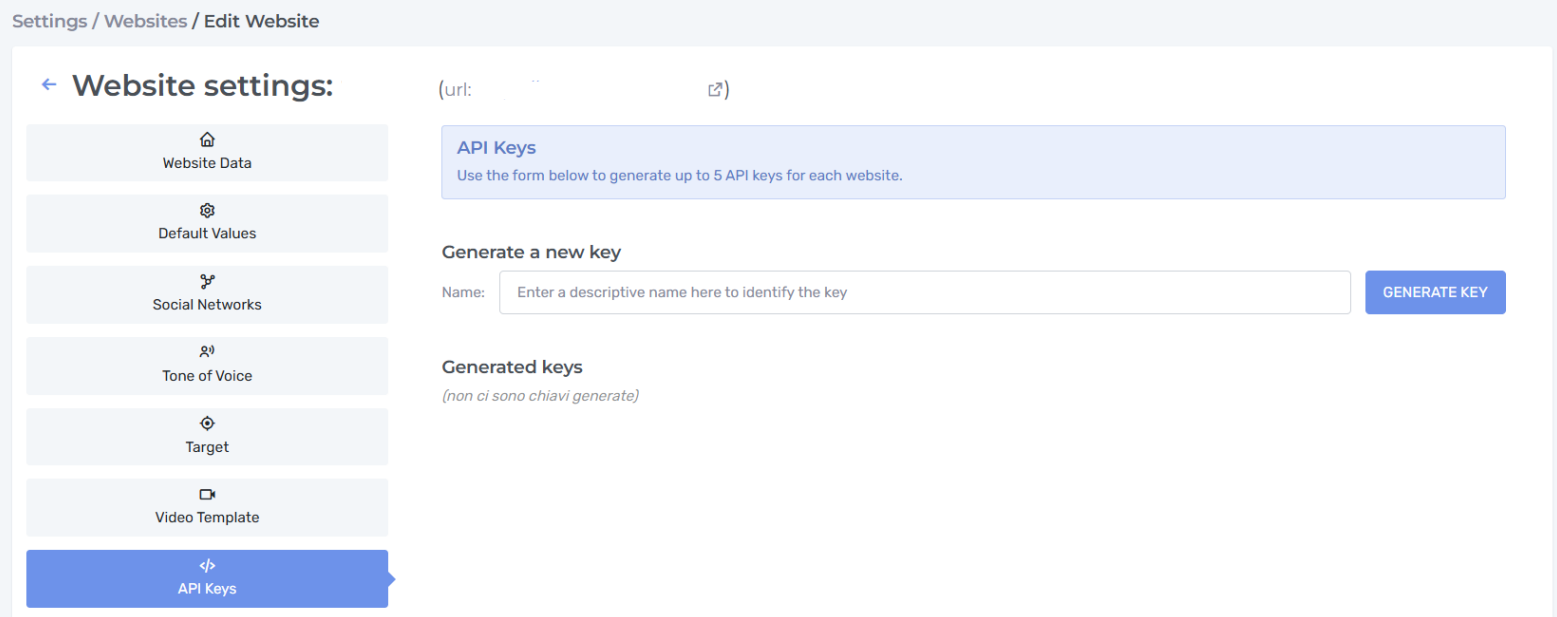
For WordPress users, the API key will be generated automatically here so that you can connect WordPress to AuthorEvo. We recommend that you never delete this key, unless your WordPress site has been compromised.